How to Use a Weather Forecast and Radar Map for Real-Time Tracking
Want to know if it will rain before heading out? A weather forecast and radar map can help you plan ahead and see how weather conditions are changing around you. GoWeatherRadar lets you explore weather patterns on an interactive map, while GoWeatherForecast helps you check upcoming conditions. Here’s how to use both tools to make smarter everyday plans.
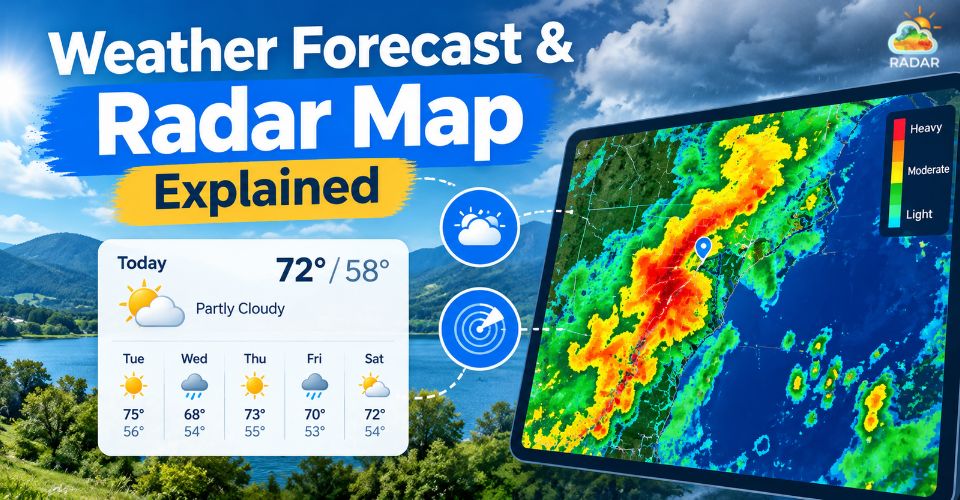
Weather forecast and radar map
Weather Forecast and Radar Map: Why You Need Both
A weather forecast and a radar map serve different purposes, but using both gives you a clearer picture of changing weather.
A forecast helps you plan ahead, while a radar map lets you explore weather patterns across your area.
Together, they help you make better decisions about commuting, outdoor activities, and travel.
The Difference Between Weather Forecasts and Radar Maps
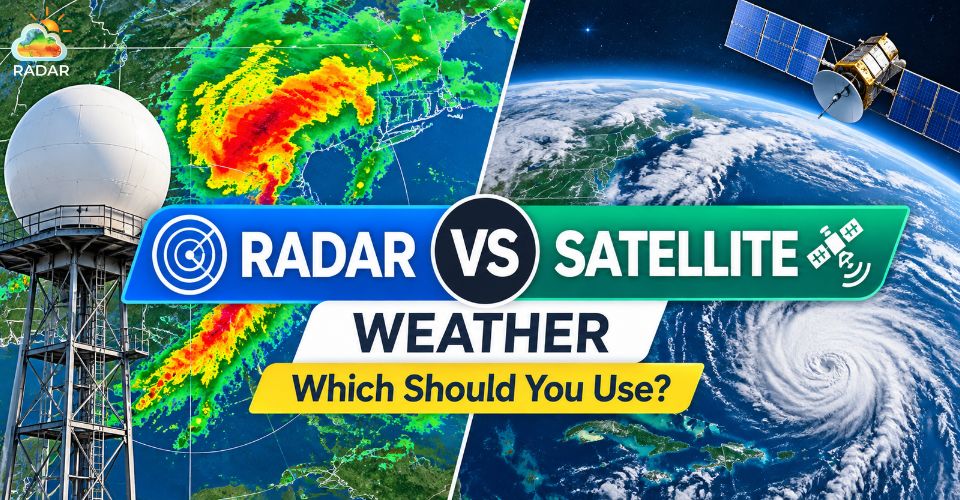
Weather forecasts help you understand what conditions to expect in the coming hours or days. They provide information such as temperature, chance of rain, wind speed, and humidity, making it easier to plan your schedule.
Weather radar maps show weather patterns visually, helping you identify areas of precipitation and examine how conditions vary across different locations.
Here’s a quick comparison:
|
Feature |
Weather Forecast |
Weather Radar Map |
|
Main purpose |
Predict upcoming weather |
Visualize weather patterns |
|
Key information |
Temperature, rain chances, wind, and humidity |
Precipitation and other mapped weather conditions |
|
Best for |
Planning ahead |
Checking where weather systems are located |
|
Example |
Checking whether rain is expected this afternoon |
Seeing where precipitation appears around your destination |
Keep in mind that a forecast is a prediction, not a guarantee, and a radar-style map does not always show direct, real-time radar observations. Check the data source and update time when making important decisions.
How GoWeatherRadar and GoWeatherForecast Work Together
GoWeatherRadar and GoWeatherForecast help you look at weather from two different angles: visual weather maps and detailed forecast information.
-
GoWeatherRadar: Use the interactive radar map to explore rain, snow, wind, temperature, pressure, and other available weather layers. The map uses the ECMWF 9 km forecast model, with the displayed data updated at the interval shown on the website.
-
GoWeatherForecast: Visit GoWeatherForecast to check current conditions, hourly forecasts, five-day forecasts, and key metrics such as temperature, chance of rain, wind, humidity, and UV index.
The benefit of using both? You can check the forecast before leaving home, then use the map to explore weather patterns near your destination.
This combination gives you more context for planning your day without relying on a single forecast number or map view.
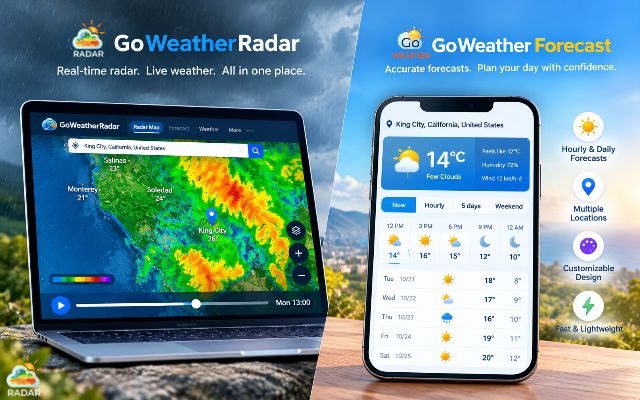
Use GoWeatherRadar to explore weather maps and GoWeatherForecast to check upcoming conditions
How to Use GoWeatherRadar Radar Map
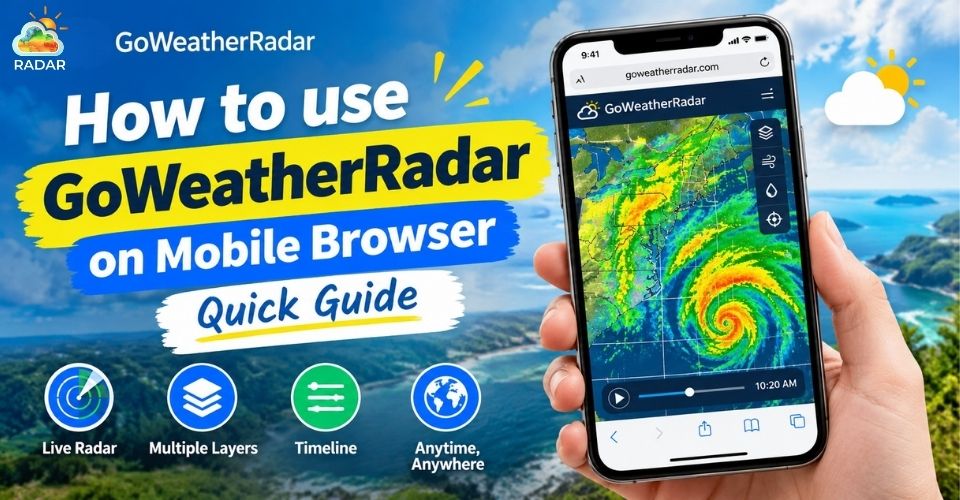
The GoWeatherRadar Radar Map lets you explore weather conditions on an interactive map.
You can search for a location, switch between weather layers, and use color scales to understand precipitation and other weather patterns.
Follow these steps to get more useful information from the map.
Step 1: Set Your Location
Open the GoWeatherRadar map and find the area you want to check.
Enter a city or location in the search bar, or select the target icon to center the map on your current location if location access is enabled.
Use the zoom controls to move between a wider regional view and a closer look at local weather patterns.
Read more: Check local weather forecast
Step 2: Choose a Weather Layer
Use the map's layer controls to view different weather conditions. Each layer highlights a different part of the forecast:
-
Rain: Check precipitation patterns and rainfall accumulation.
-
Wind: Explore wind speed and direction.
-
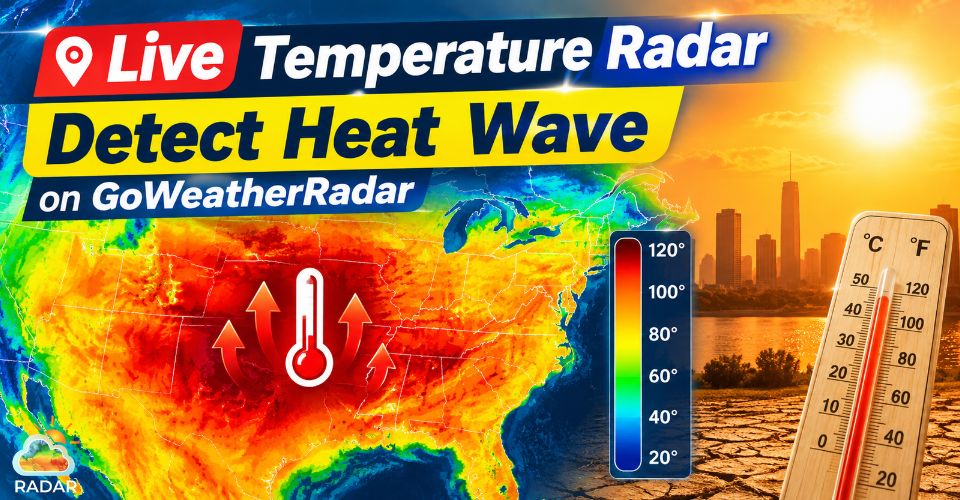
Temperature: Compare warmer and cooler areas.
-
Snow: View snow-related conditions and accumulation.
-
Pressure: Examine differences in atmospheric pressure.
-
Clouds and humidity: Explore cloud cover and moisture levels.
Choose the layer that best matches your needs.
For example, start with Rain to check precipitation, then switch to Wind to see the wind conditions around the same area.
Available layers and displayed values may vary by map settings.
Step 3: Read the Rain Color Scale
When you select the Rain layer, colors help you compare precipitation levels across the map.
Check the color scale at the bottom of the map rather than relying on color alone.
As a general guide:
-
Dark purple or slate: Very low precipitation values on the displayed scale.
-
Blue or teal: Lower precipitation levels.
-
Green: Higher precipitation levels than the blue range.
-
Pink: Very high values at the upper end of the displayed scale.
The map's legend includes precipitation values such as 5, 10, 20, 40, and 1 m. These are scale markers, not universal rainfall-intensity categories.
For more details, read our guide on how to read weather radar colors.
Step 4: Use the Timeline to Track Weather Changes
The timeline at the bottom of the map lets you explore weather conditions at different forecast times.
Move the slider to see how the selected weather layer is expected to change across the available forecast period.
Pro tip: Use the timeline to understand possible weather trends, not as a guarantee of a storm's exact path or arrival time.
GoWeatherRadar displays ECMWF 9 km forecast data, so check the model and update information shown on the map when interpreting the results.
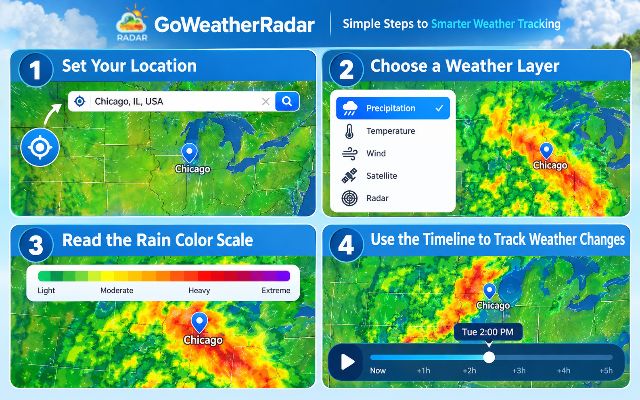
Learn how to navigate the radar map, explore weather layers, and track changing conditions
For a more detailed guide, drop by How to use GoWeatherRadar!
How to Use GoWeatherForecast
To check detailed weather forecasts, visit GoWeatherForecast directly.
You can also access it from GoWeatherRadar by opening the Weather page and select Go Weather to navigate to GoWeatherForecast.
From there, you can check current conditions and upcoming forecasts to plan your day.
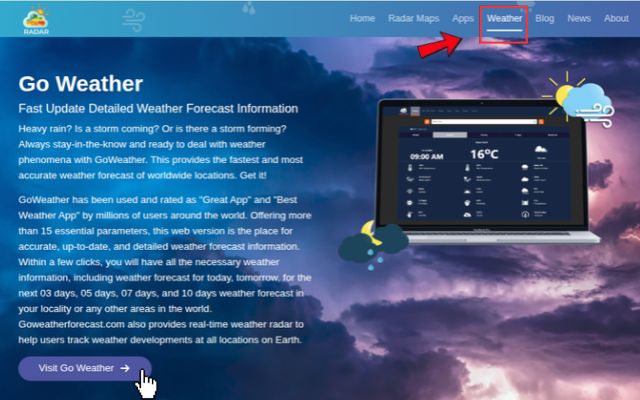
Go to GoWeatherForecast from GoWeatherRadar
Step 1: Check Current Conditions and Key Metrics
Start by selecting your location and reviewing the current weather summary. GoWeatherForecast displays several useful indicators, including:
-
Temperature and Feels Like: Understand the actual air temperature and how it may feel outdoors.
-
Chance of Rain and Precipitation: Check the likelihood of rain and the reported precipitation amount.
-
Wind Speed and Direction: See how windy it is and which direction the wind is coming from.
-
Humidity and Dew Point: Understand moisture levels in the air.
-
UV Index: Check the strength of ultraviolet radiation when planning outdoor activities.
These details help you decide what to wear, whether to bring an umbrella, and what conditions to expect before heading out.
Step 2: Review the Hourly Weather Forecast
Open the Hourly section to see how conditions may change throughout the day. Check the forecast temperature, chance of rain, wind, and cloud cover for each available time period.
Step 3: Explore the Daily Forecast for Upcoming Plans
Use the 5 Days or Weekend view to plan short trips, outdoor events, and other activities. Compare daily high and low temperatures, rain chances, and wind conditions to identify days that may be more suitable for your plans.
For plans further ahead, remember that forecasts generally become less certain over time. Check the latest updates as your plans approach instead of relying on an early forecast alone.
Step 4: Check Severe Weather Warnings
Before travelling or spending extended time outdoors, check for official warnings about thunderstorms, heavy rain, flooding, strong winds, or extreme temperatures.
You can use GoWeatherForecast to review the expected conditions and GoWeatherRadar to explore precipitation patterns.
However, do not assume the website provides emergency alerts or push notifications unless that feature is available in your version.
For safety-critical decisions, follow warnings from your local meteorological service and emergency authorities.
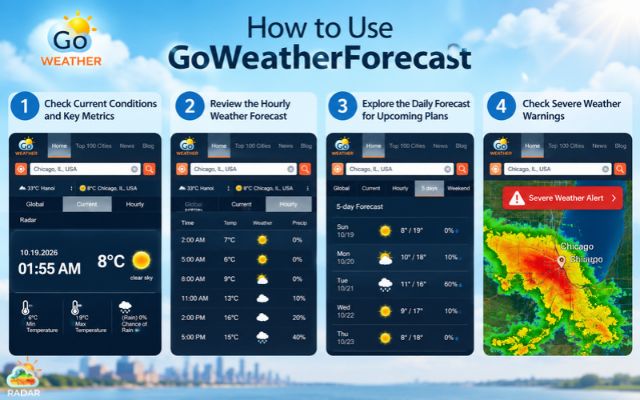
Check current conditions and upcoming forecasts to plan your daily activities
Final Words
A weather forecast and radar map work best together to help you stay prepared for changing conditions. Use GoWeatherRadar to explore weather patterns and GoWeatherForecast to check upcoming conditions before heading out. Visit both tools today to make informed plans and stay one step ahead of the weather.


0 Comments
Leave a Comment
Your email address will not be published. Required fields are marked *